
Introduction
Running Docker containers in production means dealing with accumulated images, orphaned volumes, and unused networks. If not kept in check, these can quickly eat up disk space and cause issues on your server.
To prevent this, we’ll set up a simple daily cleanup routine using cron jobs to automatically prune unused Docker resources.
This post is for engineers who are familiar with Docker and want a straightforward automation solution.
Table of Contents
Docker Prune Basics
Docker has a fantastic prune command to clean up all unused Docker containers, networks and volumes.
Using Watchtower? If you’re using Watchtower, the removal of old images and volumes can be achieved with additional arguments on the container. See the official documentation for details.
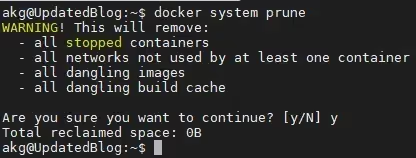
Let’s check out the basic prune command:
docker system pruneJust a word of warning: This command will delete dangling and unused images (unused images are images no longer referenced by any containers), networks that are not used, the build cache, and any stopped containers you might have.
Including Volume Cleanup
If you also want to prune unused volumes (use with some degree of caution1), you can append --volumes to the same command:
docker system prune --volumesIf this is the first time you’ve run this command, you may have a few gigs of data that gets reclaimed. For me this was 0B since I had previously run the command.
I’m all for saving time, so let’s automate this command.
Setting Up Daily Automation
To automate this process, the simplest way is to run a cron job daily to execute our prune command with a filter to delete images that are over a certain age.
docker system prune -af --filter "until=$((30*24))h"Breaking Down the Command
Let’s break this command down so you can see what it’s doing:
docker system prune -af --filter "until=$((30*24))h"# ↑ ↑ ↑ ↑# │ │ │ └─ Age filter (30 days)# │ │ └─ Force (no prompt)# │ └─ All unused images# └─ Base prune commandFlag explanations:
docker system prune: Instructs Docker to prune unused containers-af: We’ve combined two flags here:-a: Forces Docker to look for all containers that are not in use anymore-f: Prevents the confirmation prompt
--filter "until=$((30*24))h": Specifies the age of images to delete (images older than 30 days). We’re using some basic maths logic in bash here as bash only supports h (Hours). So let’s calculate 30*24 hours which gives us 1 month in hours. You can shorten this time should you have very limited disk space on your VPS.
Be careful with using the
-aflag as this refers to images not referenced by any current containers - this is highly destructive.
Creating the Cron Job
Let’s create a new file in the cron directory to house our command:
sudo nano /etc/cron.daily/docker-pruneOnce the file opens, add the prune command we created earlier and inform the OS it’s a bash file with #!/bin/bash:
#!/bin/bashdocker system prune -af --filter "until=$((30*24))h"Save and close the file (hit Ctrl + O and then Ctrl + X to save and close the file if using Nano), then run the following chmod command to make it executable:
sudo chmod +x /etc/cron.daily/docker-pruneTesting the Setup
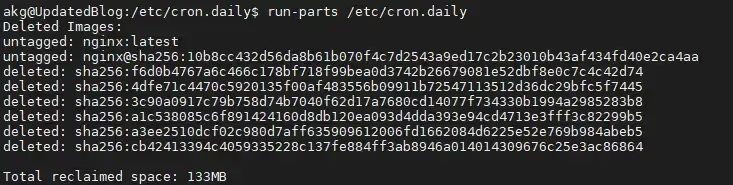
Docker will now execute this command daily2. To test the daily cron register, you can run:
sudo run-parts /etc/cron.dailyIf you see the following output, it means the command ran successfully as part of the cron daily register:
Advanced Configuration
If you want to add logging to track what’s being cleaned up, you can enhance the script:
#!/bin/bashLOG_FILE="/var/log/docker-cleanup.log"DATE=$(date '+%Y-%m-%d %H:%M:%S')
echo "[$DATE] Starting Docker cleanup..." >> "$LOG_FILE"docker system prune -af --filter "until=$((30*24))h" >> "$LOG_FILE" 2>&1echo "[$DATE] Docker cleanup completed" >> "$LOG_FILE"
Troubleshooting
If your cron job isn’t working, here are some common issues:
Permission Issues
Permission denied: Make sure the script has execute permissions:
sudo chmod +x /etc/cron.daily/docker-pruneService Issues
Cron not running: Check if the cron service is active:
sudo systemctl status cronScript Testing
Script errors: Test the script manually first:
sudo /etc/cron.daily/docker-pruneResources
If you have other resources, please reach out and I’ll add them here.
Footnotes
-
Volume Pruning Warning: The
--volumesflag permanently removes volume data that might contain important application data, databases, or configuration files. Always implement a backup strategy before enabling automated volume pruning. Usedocker volume lsto review volumes before deletion. ↩ -
Docker’s pruning mechanism includes built-in safety measures - it will never remove images that are being used by any containers (running or stopped), making it safe for automation in production environments. ↩